
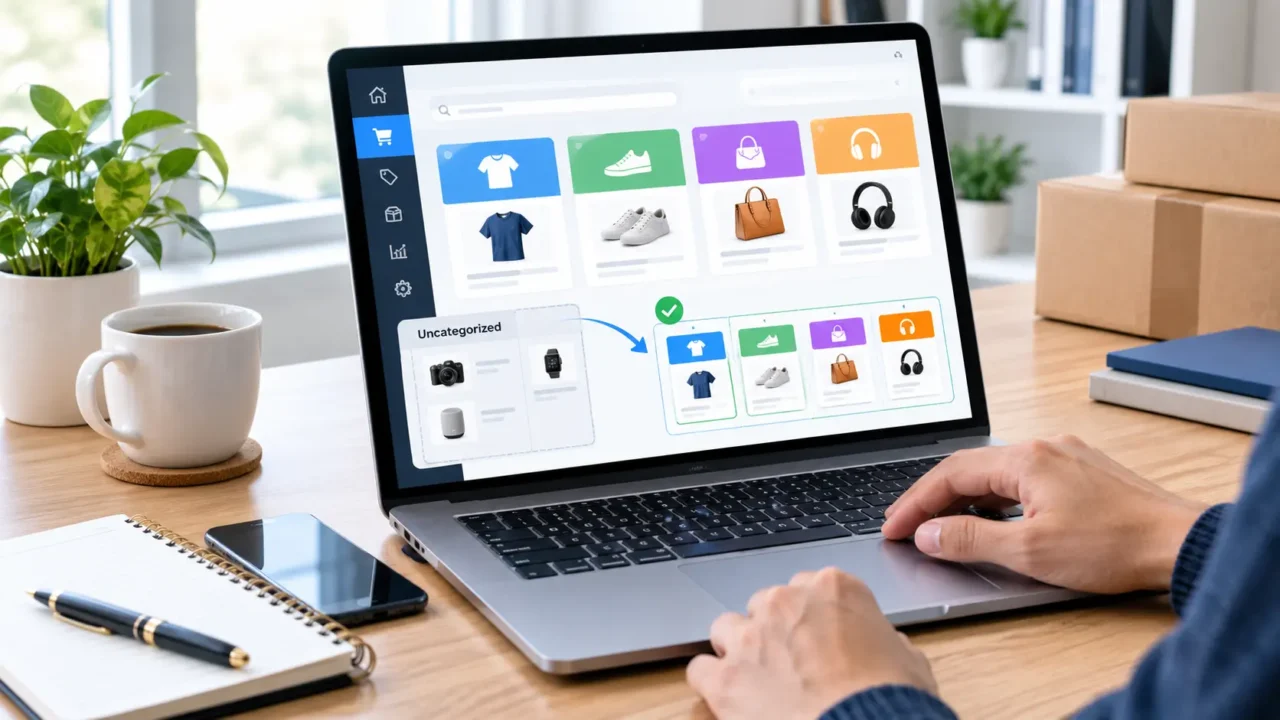
How to Remove Uncategorized from WordPress WooCommerce
If Uncategorized is appearing in your WooCommerce store, you usually cannot delete it immediately because WooCommerce requires every product to have a category. The simplest solution is to create or choose another product category, make it the default category, and then delete or rename Uncategorized.
This guide explains how to remove Uncategorized from WordPress WooCommerce safely, including what to do with products already assigned to it and how to avoid category-related problems.
What Is Uncategorized in WooCommerce?
Uncategorized is the default product category created for WooCommerce.
Every WooCommerce product needs to belong to a product category. If you add a product without selecting another category, WooCommerce can assign it to the default category. By default, that category is commonly named Uncategorized.
For example, imagine an online clothing store with these categories:
- Men’s Clothing
- Women’s Clothing
- Shoes
- Accessories
- Uncategorized
If a new shirt is added without selecting a category, it may end up under Uncategorized.
That is usually not what you want for a professionally organized store.
Can You Delete Uncategorized in WooCommerce?
Yes, but not while it is the default product category.
WooCommerce’s documentation explains that there must always be a default product category because every product must have a category. The default Uncategorized category cannot be deleted while it is still the default.
However, you can select another category as the default. Once Uncategorized is no longer the default category, it can be deleted.
So the process is:
Create category → Make it default → Move products → Delete Uncategorized
Remove Uncategorized from WordPress WooCommerce
Create a New Product Category
First, make sure your store has at least one proper product category.
From your WordPress dashboard:
Products → Categories
Create a category that makes sense for your store.
For example:
- Clothing
- Electronics
- Home & Garden
- Beauty
- Accessories
Enter the category name and click Add New Product Category.
WooCommerce manages product categories from Products → Categories. You can also create parent and child categories when needed.
Example
If you sell mobile accessories, you could create:
- Phone Cases
- Chargers
- Power Banks
- Screen Protectors
- Cables
Choose categories that describe the actual products in your store rather than creating dozens of unnecessary categories.
Make Your New Category the Default
After creating a suitable category, make it the default product category.
Go to:
Products → Categories
Find the category you want to use as the default.
WooCommerce provides a Make default action for product categories. Select it for your chosen category.
For example:
Uncategorized → Clothing
You are telling WooCommerce that Clothing should now be the fallback category when a product doesn’t have another category assigned.
Check Products Assigned to Uncategorized
Before deleting Uncategorized, check whether any products are still assigned to it.
Go to:
Products → All Products
Look through your products and identify those that are currently using Uncategorized.
You can edit a product and select the appropriate category from the Product categories section.
WooCommerce’s product editor allows you to select one or more existing product categories when editing a product.
Example
Suppose you have:
| Product | Current category | Correct category |
|---|---|---|
| Leather Wallet | Uncategorized | Wallets |
| USB-C Cable | Uncategorized | Cables |
| Running Shoes | Uncategorized | Shoes |
| Coffee Mug | Uncategorized | Kitchen |
Move each product to the category that accurately describes it.
Delete Uncategorized
Once you have changed the default category and handled the products, return to:
Products → Categories
Find Uncategorized.
You should now be able to use the Delete option because it is no longer the default product category. WooCommerce specifically documents that changing the default category allows the former Uncategorized category to be deleted.
Before deleting it, however, check that you really do not need the category.
An Easier Option: Rename Uncategorized
You do not always need to delete Uncategorized.
If your store needs a general fallback category, you can simply rename it.
For example:
Uncategorized → General
or:
Uncategorized → Other Products
This can be useful if you frequently add products that don’t fit neatly into your main categories.
WooCommerce confirms that the default category can be renamed even though it cannot be deleted while it remains the default.
When should you rename it?
Renaming can make sense when:
- You want to keep a general category.
- Your store has many different product types.
- You don’t want to reorganize existing products immediately.
- You want to avoid deleting a category that is still useful.
How to Remove Uncategorized from Product URLs
Sometimes people searching for remove Uncategorized from WordPress WooCommerce are actually talking about URLs.
For example, they may see something similar to:
example.com/product-category/uncategorized/
This is different from simply removing the category from the WordPress dashboard.
WooCommerce uses a product category base in its permalink structure. You can manage the product category base from:
Settings → Permalinks
WooCommerce documents the product category base as part of the optional permalink settings.
However, don’t change permalink settings simply because you see the word Uncategorized.
First determine whether:
- Uncategorized is actually assigned to products.
- Uncategorized is appearing in a product category URL.
- You want to change the category itself.
- You want to change the URL structure.
These are different problems.
What Happens When You Delete a WooCommerce Category?
Deleting a category does not mean the products are deleted.
The category and the products assigned to it are separate things.
The important part is making sure your products have appropriate categories after the change.
WooCommerce’s category system allows products to belong to categories and subcategories, so you can reorganize your catalog without deleting the actual products.
What About WordPress Posts?
There is another Uncategorized category in WordPress that is separate from WooCommerce product categories.
This is important.
WordPress has a default category for regular posts, while WooCommerce has product categories for products. WordPress also requires a default category for posts, and its default category can be changed from the Writing settings.
So don’t confuse:
Posts → Categories
with:
Products → Categories
If your goal is to remove Uncategorized from WooCommerce products, work under Products → Categories.
WooCommerce Uncategorized vs WordPress Uncategorized
| Feature | WordPress Uncategorized | WooCommerce Uncategorized |
|---|---|---|
| Used for | Blog posts | Products |
| Location | Posts → Categories | Products → Categories |
| Can have subcategories | Yes | Yes |
| Has a default category | Yes | Yes |
| Can be renamed | Yes | Yes |
| Can be deleted while default | No | No |
| Used for product organization | No | Yes |
This distinction prevents you from changing the wrong category.
Why Should You Remove Uncategorized?
Leaving Uncategorized in your store is not necessarily a technical problem.
However, a well-organized product catalog is easier for customers to understand.
A clear category structure can help visitors browse products and find what they need. WooCommerce describes product categories as a primary way to group similar products and create a navigable store structure.
For example:
Poor structure
- Uncategorized
- Product 1
- Product 2
- Product 3
Better structure
- Men’s Clothing
- Women’s Clothing
- Shoes
- Accessories
The second structure gives shoppers more useful information immediately.
Common Mistakes to Avoid
Don’t Delete Uncategorized First
You may not be able to delete it while it remains the default category.
Change the default category first.
Don’t Delete Products by Accident
Deleting a category is not the same as deleting products, but always review your products before making major catalog changes.
Don’t Put Everything in One Category
A category structure should help shoppers navigate your store.
For a large store, use logical parent and child categories instead of putting hundreds of unrelated products into one general category.
Don’t Change URLs Without Checking Existing Links
If you modify category slugs or permalink structures, existing links may be affected.
If the category already receives search traffic or has been linked externally, consider redirects before making URL changes.
Best WooCommerce Category Structure
A simple structure usually works better than a complicated one.
For example, an electronics store might use:
Electronics
- Mobile Accessories
- Cases
- Chargers
- Cables
- Computers
- Laptops
- Keyboards
- Mice
- Audio
- Headphones
- Speakers
WooCommerce supports parent and child product categories, allowing stores to create hierarchical structures like this.
Avoid creating a separate category for every minor product variation. Attributes such as colour, size, or material may be more appropriate for product attributes rather than categories.
Quick Checklist to Remove Uncategorized
Before finishing, check these items:
- Create a suitable product category.
- Make the new category the WooCommerce default.
- Review products assigned to Uncategorized.
- Move products to the correct categories.
- Return to Products → Categories.
- Delete Uncategorized if you no longer need it.
- Check your shop and category pages.
- Test important product links if you changed URLs.
- Confirm new products receive the correct category.
Frequently Asked Questions
Why can’t I delete Uncategorized in WooCommerce?
Because WooCommerce requires a default product category. If Uncategorized is currently the default, it cannot be deleted. Make another category the default first.
Can I rename Uncategorized instead?
Yes. If you still want a general default category, renaming Uncategorized can be easier than deleting it. WooCommerce allows the default category to be renamed.
Will deleting a WooCommerce category delete my products?
No. The category and product are separate. However, you should review product category assignments before and after the change.
How do I change the default WooCommerce product category?
Go to Products → Categories, find the category you want, and use the Make default action provided by WooCommerce.
Is WooCommerce Uncategorized the same as WordPress Uncategorized?
No. WordPress uses categories for regular posts, while WooCommerce has a separate product-category system. Make sure you are working under Products → Categories when organizing WooCommerce products.
Should I remove Uncategorized completely?
If your store has clear categories and no need for a general fallback category, removing it can make your catalog cleaner. Otherwise, renaming it may be the better option.
Conclusion
To remove Uncategorized from WordPress WooCommerce, don’t try to delete it immediately. First create a useful product category, make that category the default, and review products currently assigned to Uncategorized. Once it is no longer the default, WooCommerce allows the old Uncategorized product category to be deleted.
If you still need a general fallback category, simply rename Uncategorized instead. The important goal is not just removing the word—it is creating a product category structure that makes your store easier to browse and manage.